
You can ask a supplier for your PromoStandards login without leaving PSRESTful. Fill in your company's details once, pick the supplier, and we email their credential team for you. Replies come straight to you.
When you need to ask
Each supplier issues its own PromoStandards login. For many suppliers we hold a shared login (our agent credentials) for product data, images, net and list prices, and stock, so you can start without asking anyone. You need your own login when:
- a supplier has no shared login with us. On the Integrated Suppliers page it shows an X under Creds, and the PromoSync supplier list marks it Needs your login. Those suppliers only share data with distributors they've given a login to, so PromoSync can't import from them until yours is saved.
- you want anything tied to your account with the supplier: your negotiated pricing, orders, shipments, or invoices.
Agent credentials vs your own explains the split in more detail.
Set up your Org Info (once)
Suppliers want to know who's asking before they issue a login, so every request carries your contact details and at least one industry identifier. You fill these in once, and every request after that reuses them.
Only account admins can change Org Info, and the Credentials link is in their user menu. If you don't see it, or the fields are locked, ask your admin.
- Open Credentials from your user menu and click the Request tab.
- Click Org Info to open it.
- Enter the Contact Name the supplier should reply to.
- Enter the Contact Email. It can be different from your login email.
- Read the Default Message and change it if you need to.
-
Click Save Defaults.
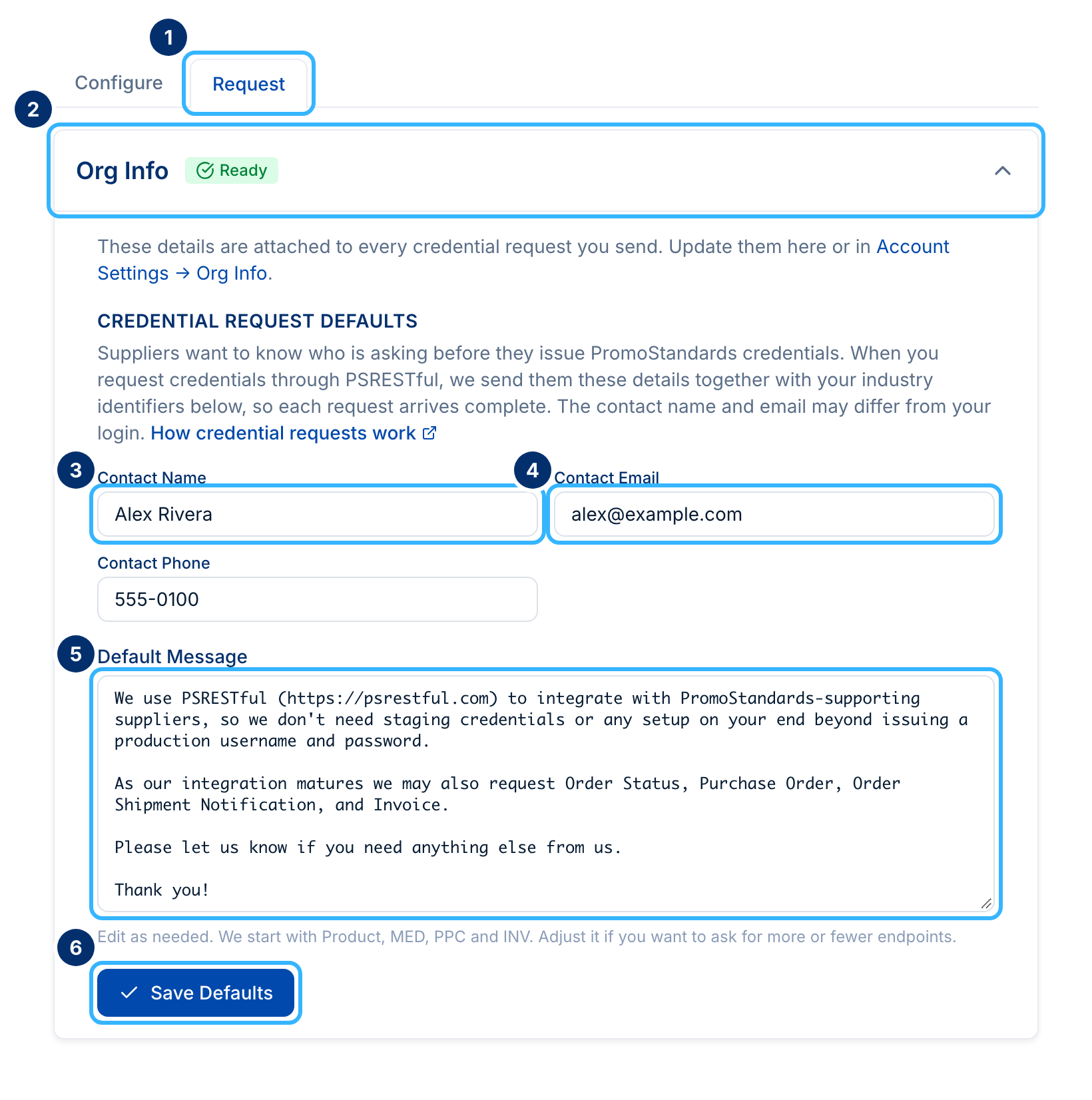 Made-up company and contact. Your screen shows your own.
Contact Phone is optional. It's added to the email when you fill it in.
The Default Message opens the email to the supplier. Every request already asks for Product Data, Media Content, Pricing & Configuration (PPC), and Inventory. If you also want Order Status, Purchase Orders, Shipment Notifications, or Invoices, say so in the message.
Then add your industry identifier, the number suppliers use to find your company:
- Under Industry Identifiers, click Add Identifier.
- Pick the Type: SAGE Number, ASI Number, PPAI Number, UPIC, or Other.
- Enter the number in Value.
- Tick Use as default if this is the one you use most.
-
Click Add.
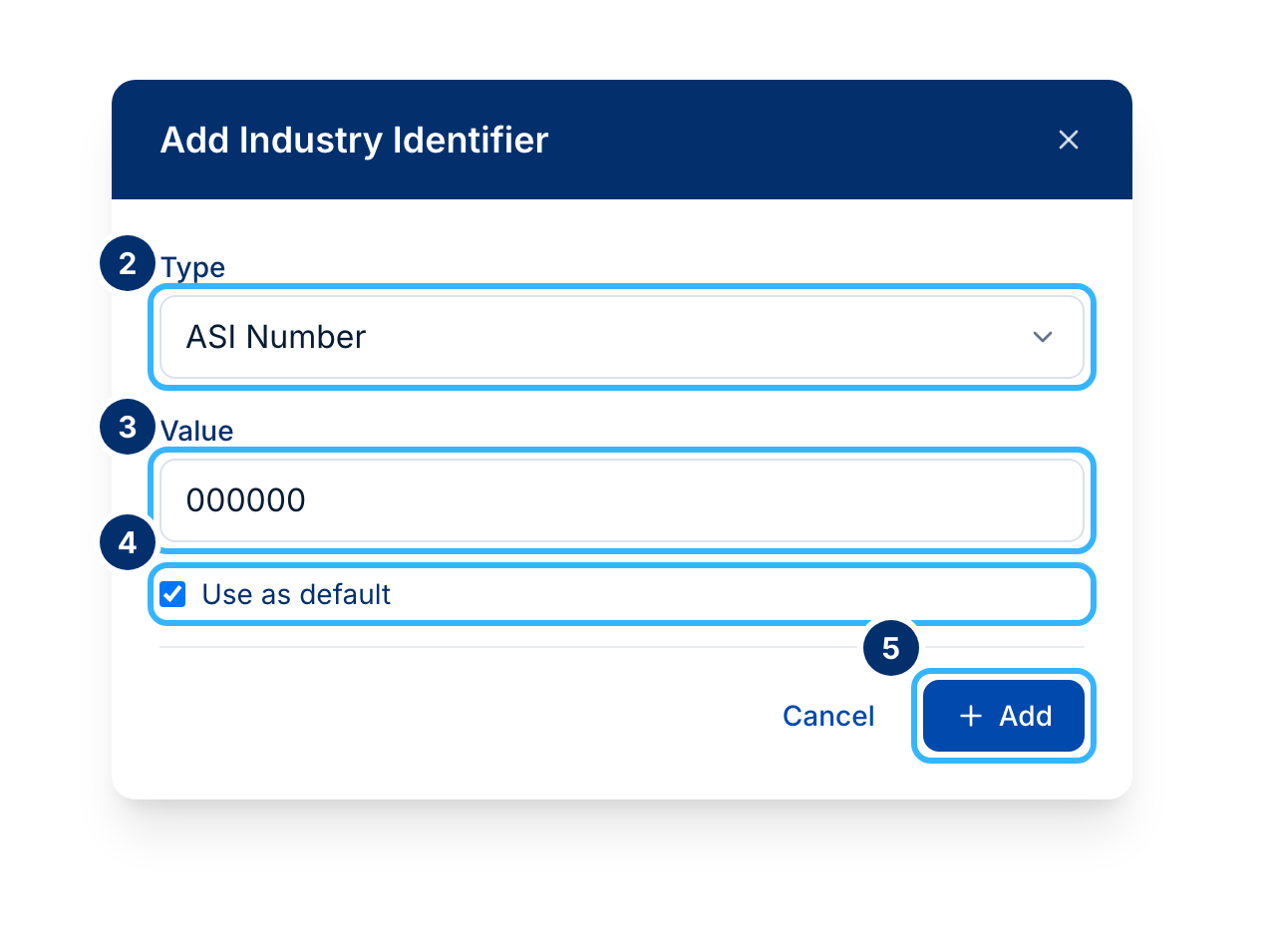 Made-up identifier. Your screen shows your own.
Add every identifier you have. All of them go into each request, with your default first. If you pick Other, a Custom Label box appears for its name, like "Vendor Code".
When the name, email, and an identifier are saved, Org Info shows Ready. Until then it shows Action needed and the request form stays hidden.
Send the request
- Click the Request tab on the Credentials page.
- Check that Org Info shows Ready.
- Pick the supplier in the Supplier list.
- If you already buy from this supplier, enter your account number in Your account # with this supplier.
-
Click Send Request.
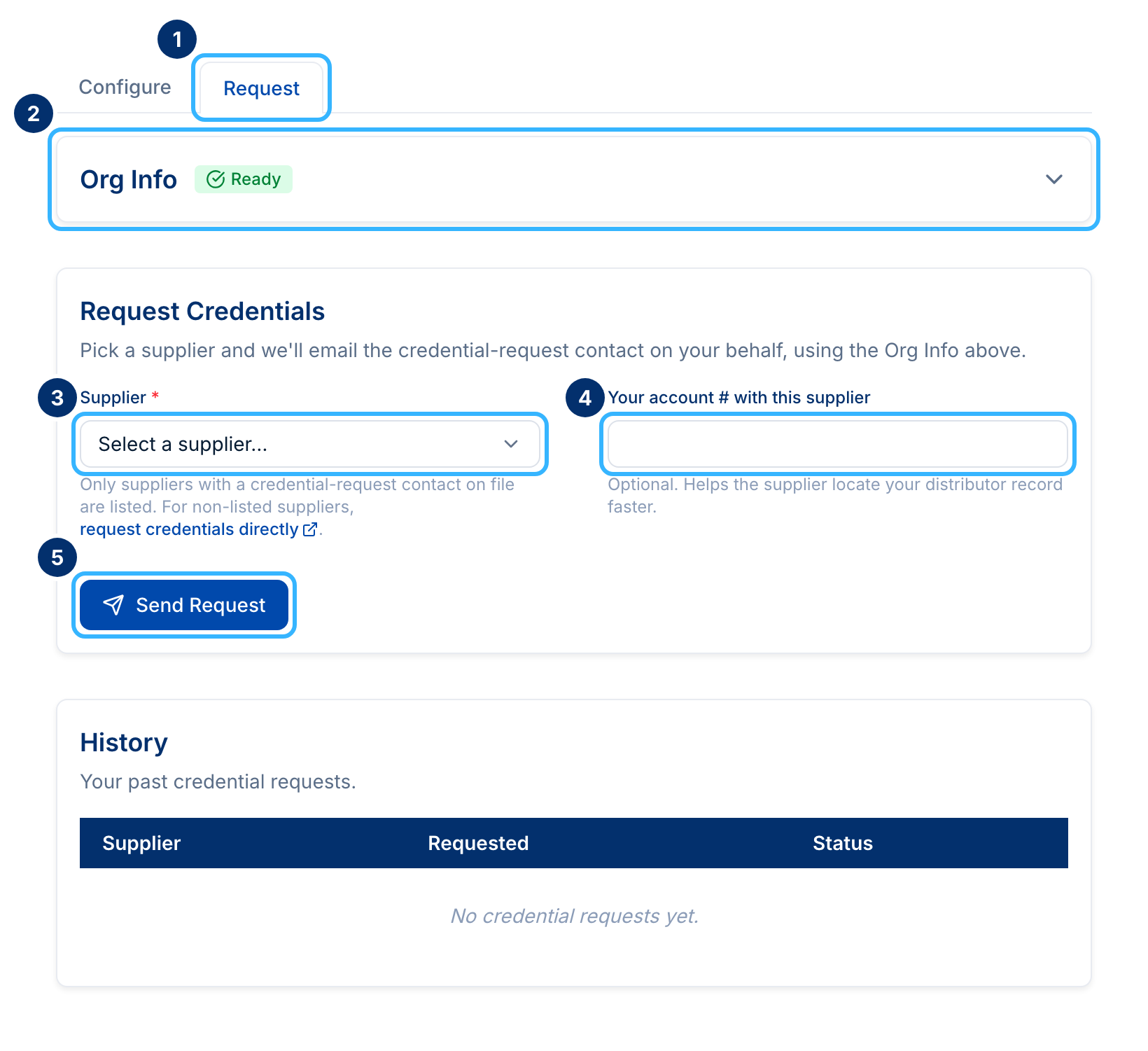 Made-up account. Your screen shows your own.
You'll see "Credential request sent to" and the supplier's name. We email the supplier's credential contact with your message, your company name, your contact details, your identifiers, and your account number if you gave one. Without an account number, the email tells the supplier you may be a new customer.
This is what the supplier receives:
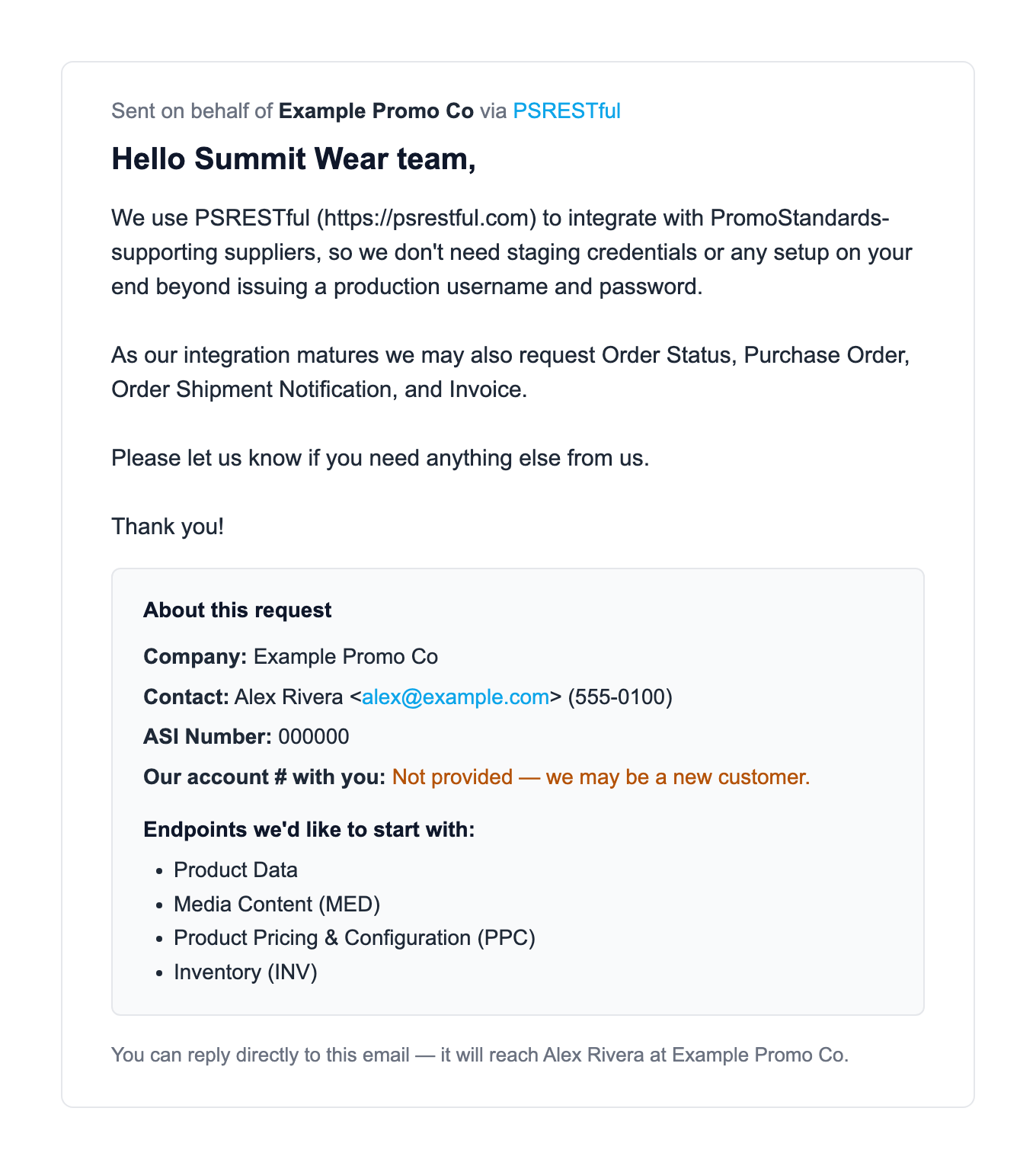 Made-up company, contact and supplier. Your email shows your own details.
Replies go straight to your Contact Email. Your contact email and our team are copied on every request, so you have a record of what was sent.
For HIT, an extra checkbox appears: I'm already a customer of HIT. Tick it if you buy from HIT, and you'll get HIT's own guide to getting the login instead of an email. HIT asks existing customers to request it themselves.
If the supplier isn't in the list
The Supplier list only shows suppliers whose credential contact we have on file. If yours isn't there, ask your sales rep at the supplier for a "PromoStandards login" (some call them "web services" or "data services" credentials). The request credentials directly link under the list shows other places to ask.
You can also contact us with the supplier's name, and we'll try to add their credential contact so future requests can go through PSRESTful.
Follow up in History
Every request shows in the History table at the bottom of the Request tab, with when you sent it and where it stands.
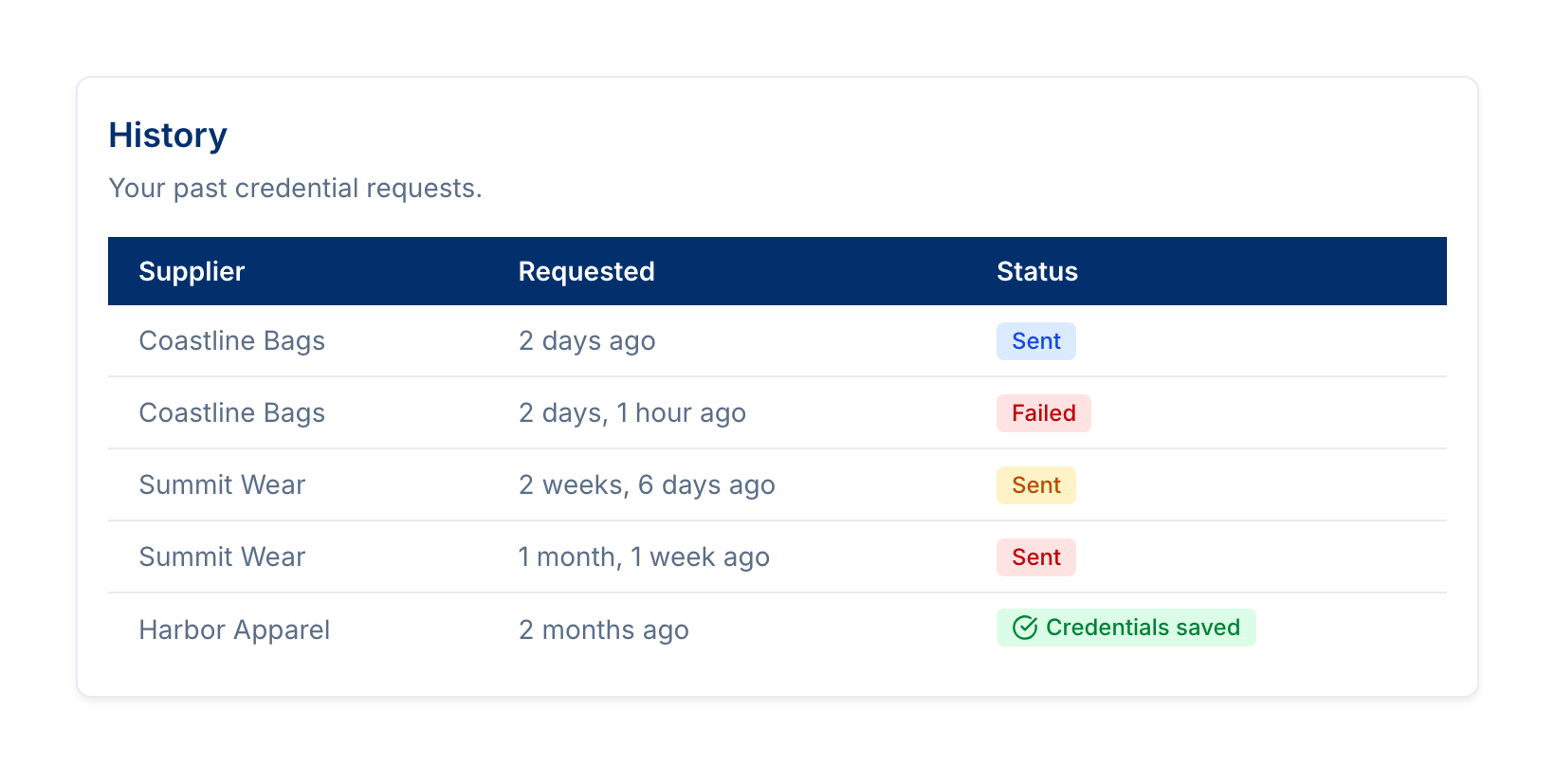 Made-up suppliers and requests. Your screen shows your own.
- Sent is blue for the first 15 days, amber after that, and red after 30. If a request turns amber with no reply, follow up with the supplier or your sales rep.
- Failed means our email didn't go out. Send the request again, and contact us if it fails twice.
- Credentials saved means a login for that supplier is now on your account.
Credential statuses covers every badge on this page.
When the login arrives
Suppliers send the login to your contact email. Save it on the Configure tab of the same page, then click the play button (Test credentials) on its row to check it works. Add your supplier credentials walks through it.
Once it's saved, the supplier's History row changes to Credentials saved. In PromoSync, a supplier that was marked Needs your login can now be imported.
Please don't email the login to us. Saving it yourself on the Configure tab stores it encrypted, and it's faster than waiting for us to enter it.