
Product Search finds products across all your suppliers in one place. Type a name, product ID, SKU, or GTIN, then narrow the results by price, lead time, and minimum quantity.
It's called Search under Data in the dashboard menu, and the page itself is Product Search
(/extra/search/products). You need the Premium plan or higher. On a
lower plan the menu item shows a lock and opens a page with the plans that include it.
What it searches
Our product catalog, for the suppliers your account can use: the ones we hold credentials for, plus any supplier you've added your own credentials for. Results start with active products only; change By Status under More Filters to see drafts, closeouts, or discontinued products.
Find your first products
- Open Search under Data in the dashboard menu.
- Type a product name, product ID, SKU, or GTIN in Search.
- Pick a Supplier to stay with one supplier, or leave it empty to search them all.
- Narrow the list with List Price, Lead Time, or Min. Qty. The results update when you change one.
-
Click More Filters for brand, category, apparel style, rush, on demand, and bundles.
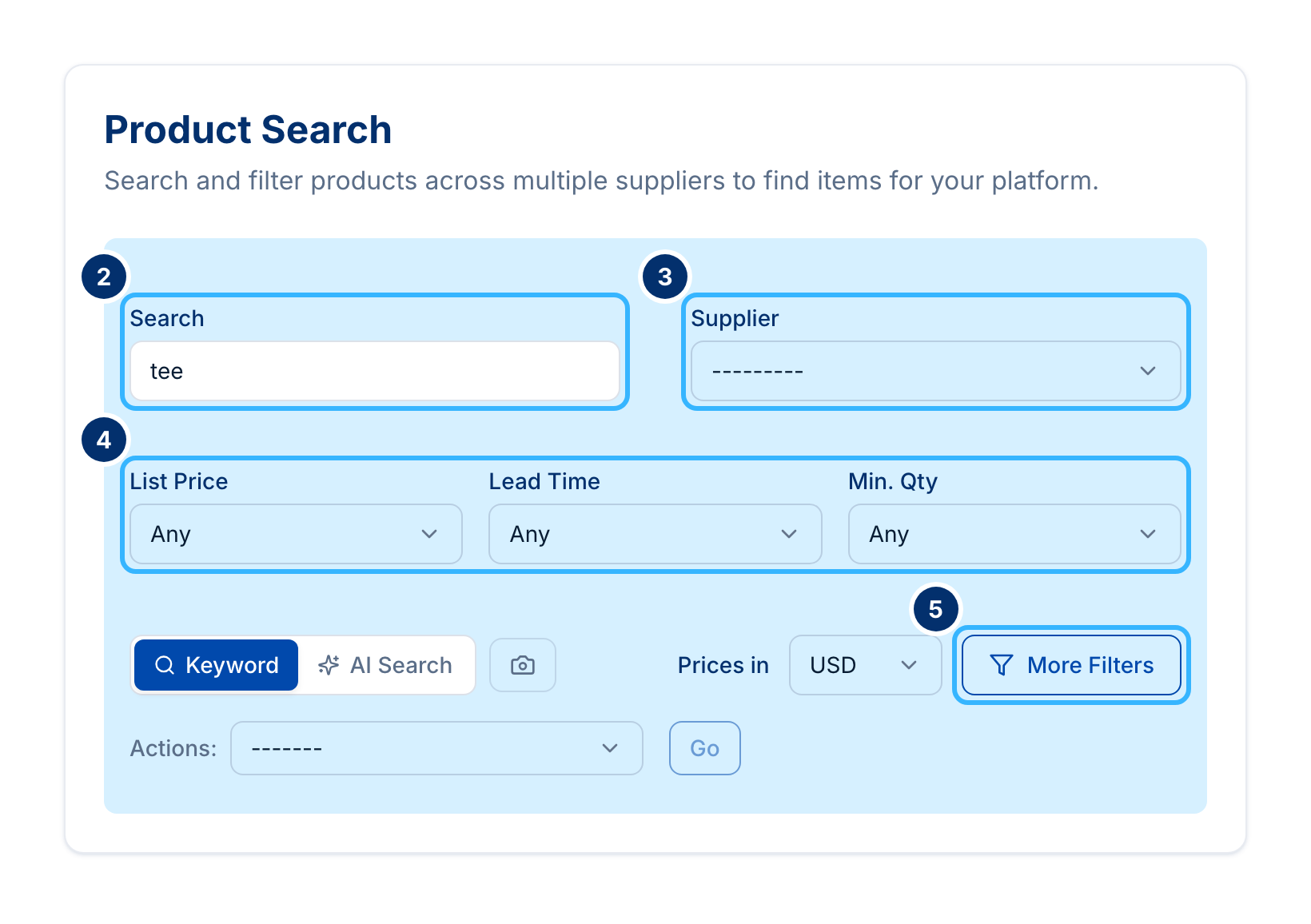 Made-up account. Your screen shows your own.
-
Click Apply Filters.
-
Click a product ID to open that product in Data Explorer, in a new tab.
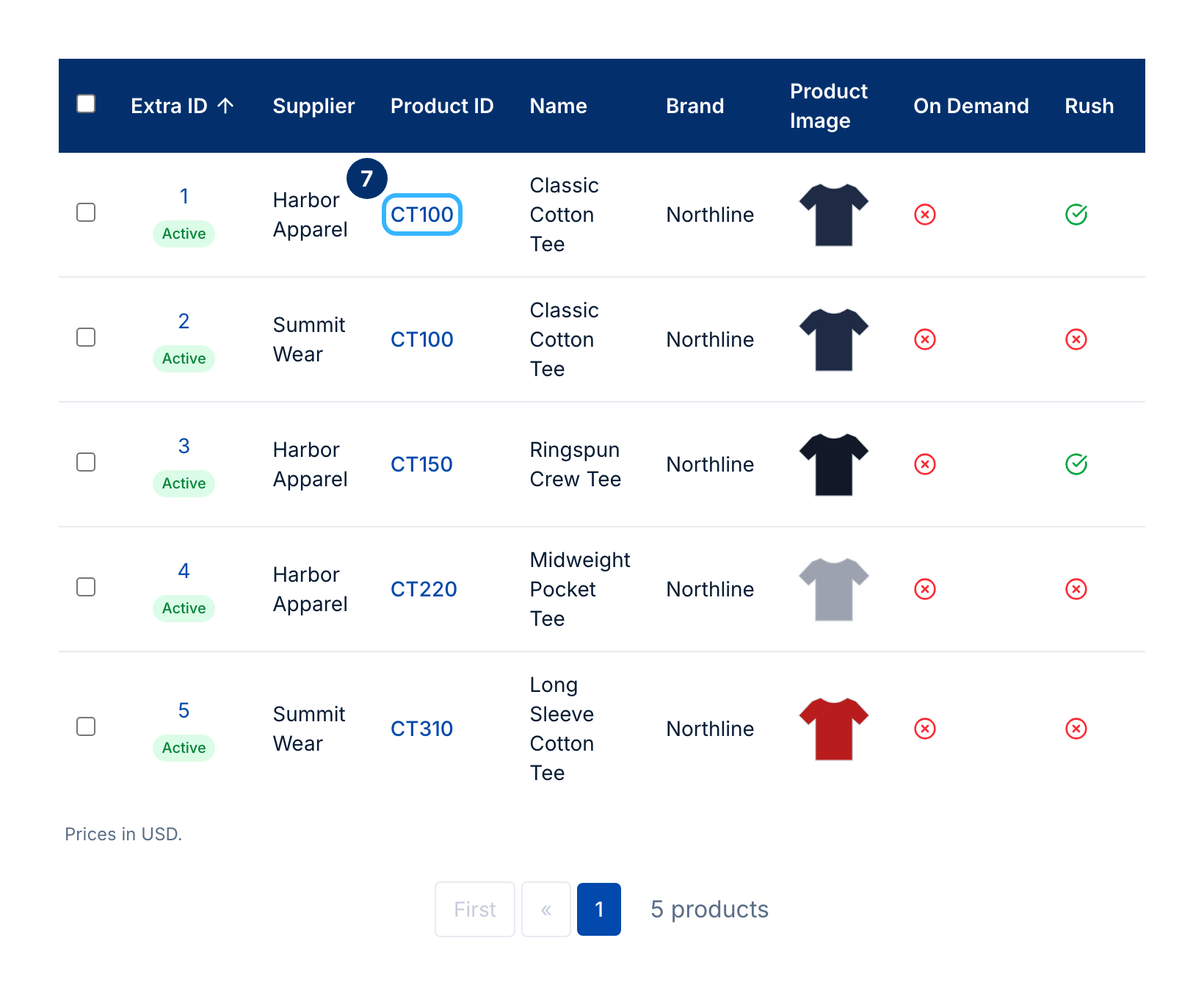 Made-up suppliers and products. Your screen shows your own.
Each row shows the supplier, name, brand, image, on demand and rush flags, lead time, minimum quantity, and four prices: List Price, List Decorated, Net Blank, and Net Decorated. Prices in sets the currency. A price the supplier gives in another currency is converted at the stored daily rate and marked with ≈.
Other ways to search
Keyword search is the default. The buttons next to it switch to:
- AI Search: describe what you need in plain words, like "eco-friendly giveaways for a tech startup", and results come back ranked by relevance.
- The camera button searches by image: upload a product photo (PNG or JPG, up to 10MB) or paste an image URL, then click Search by Image.
Good to know
- Some suppliers only share prices with distributors who use their own login. Their rows show Add credentials instead of prices until you add yours (why).
- To reuse a list of products, tick their rows, choose Copy Product IDs To Clipboard under Actions, and click Go. The Go button works once a supplier is picked. You can paste the IDs straight into the CSV Exporter.
The Extra ID column is the same ID the Extra API uses. To search the catalog in
code, call GET /extra/v2/products with search, supplier_code, brand, or category, and fetch one
product with GET /extra/v2/products/{product_id}. See https://docs.psrestful.com/extra-apis.
What to try next
- Turn the products you found into an import file with the CSV Exporter.
- Check stock on one of them with Stock Check.