
The Pricing Calculator shows what a supplier will charge you for an order before you quote it: the item at your quantity, plus the setup and run charges for each decoration, with a total.
It's called Calculator under Tools in the dashboard menu, and the page is Pricing Calculator
(/dashboard/pricing-calculator/). You need the Premium plan or
higher.
Where the prices come from
Prices come straight from the supplier through PromoStandards, the same data our API returns. If you've added your own credentials for a supplier, you see the price that supplier gives your account. Without them, you see the supplier's standard net price. Shipping and taxes aren't included, and nothing is ordered or saved: close the page and the quote is gone.
The calculator asks suppliers for prices through your account's private API key, so you need one first (how API keys work).
Price your first item
- Open Calculator under Tools in the dashboard menu.
- Under 1. What are you pricing?, choose a Supplier.
- In Product, type the product ID and pick it from the list. It searches IDs, not product names.
- Choose the Part, which is usually one color and size.
- Enter the Quantity.
- Under 2. How is it decorated?, choose Decorated.
-
Click Add decoration.
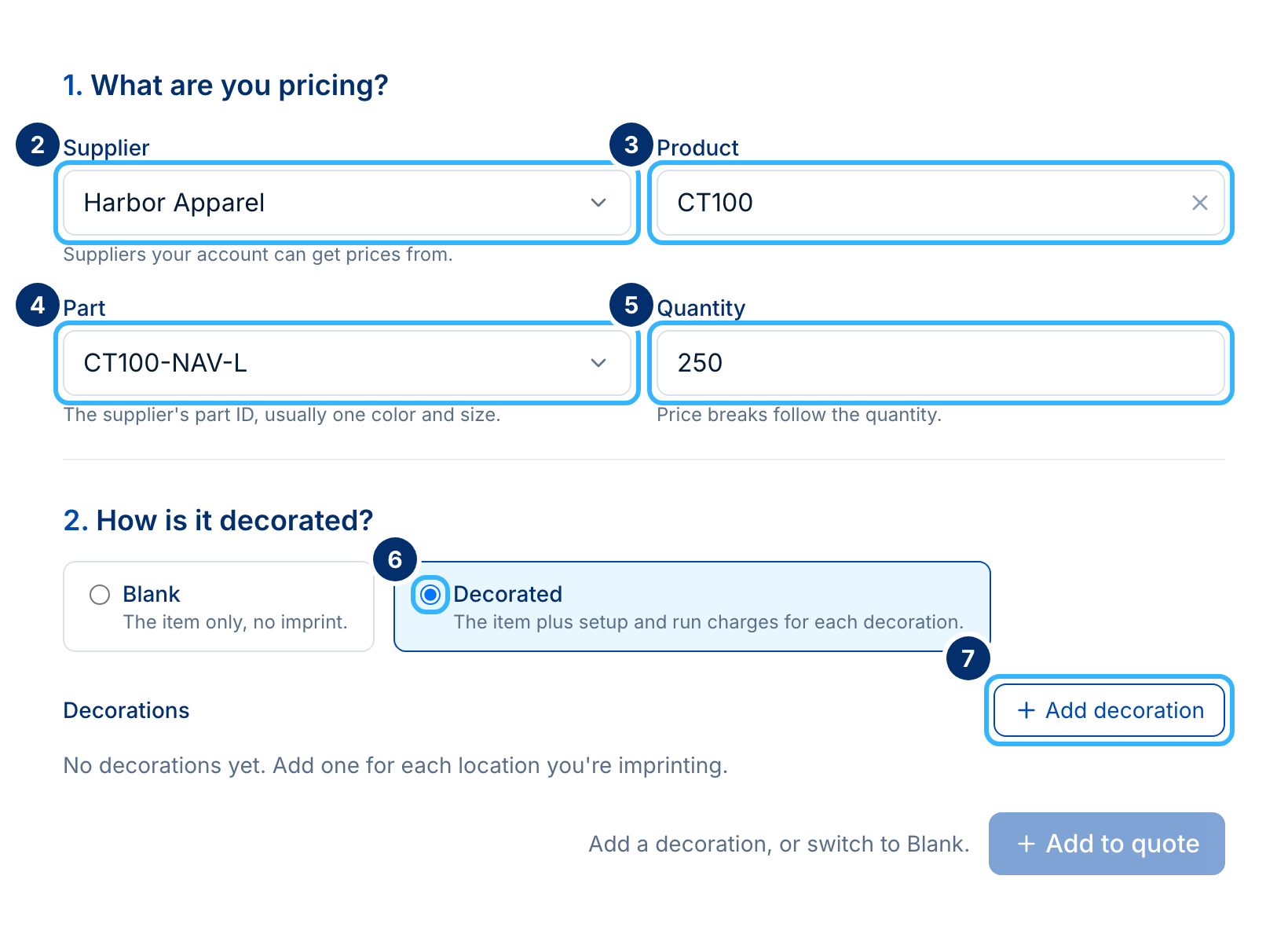 Made-up supplier and product. Your screen shows your own.
-
Choose a Location and an Imprint method.
- Enter the Size in the unit shown next to it, such as colors. For a two-color print, enter 2.
-
Click Add decoration in that window.
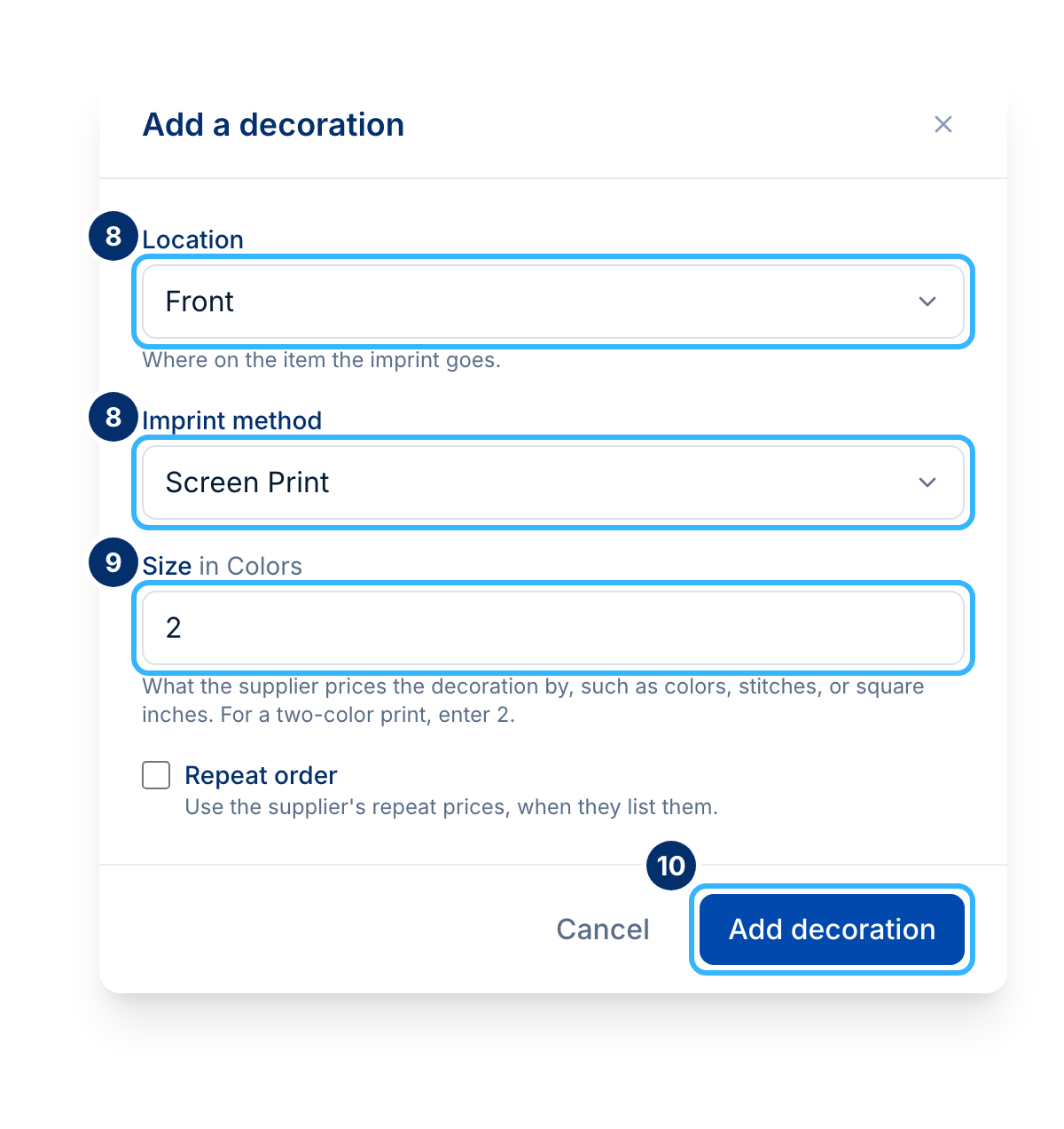 Made-up locations and imprint methods. Your screen shows your supplier's.
-
Click Add to quote.
-
Under 3. Your quote, click Calculate quote.
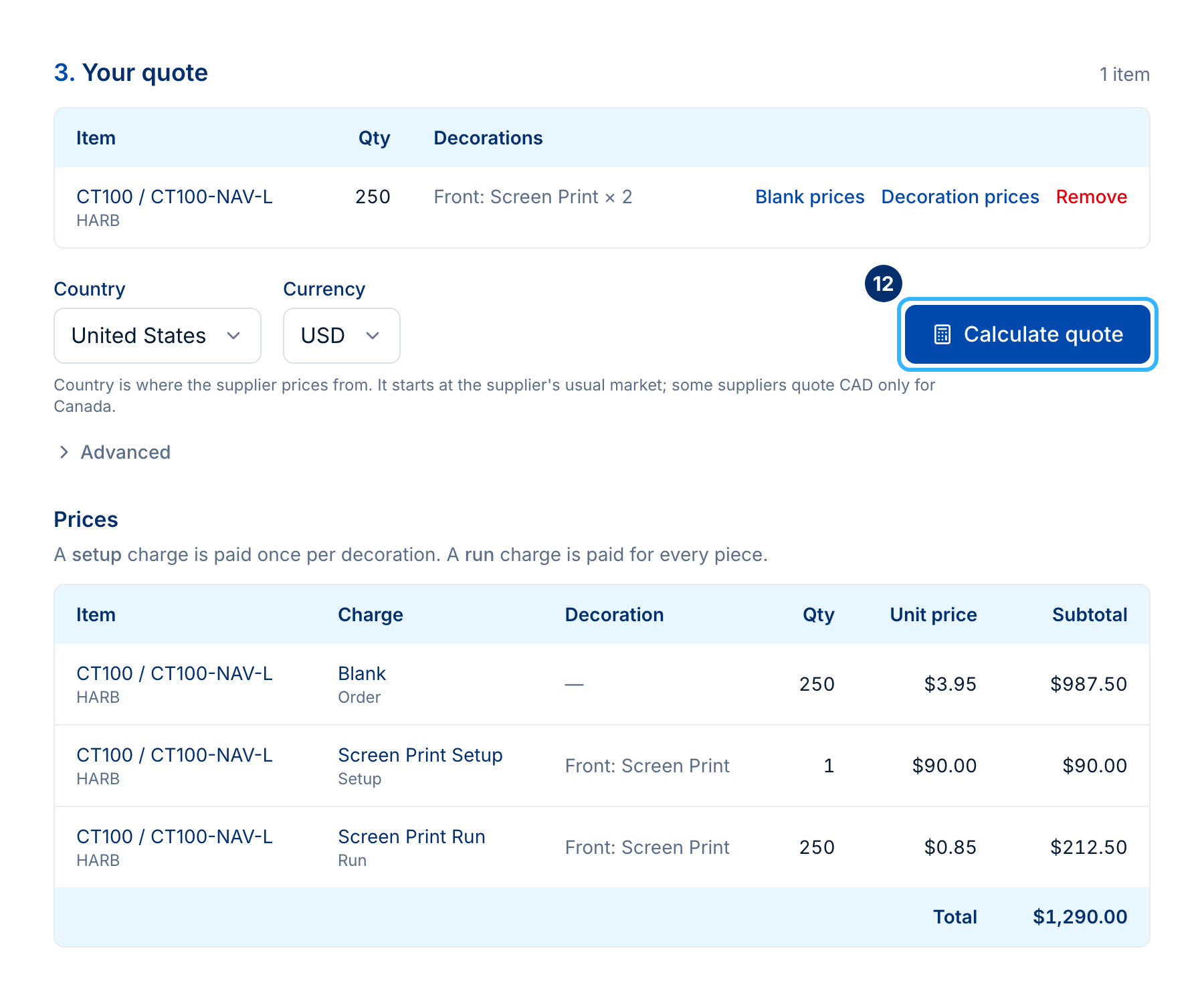 Made-up item and prices. Your screen shows your own.
The result lists each charge with its quantity, unit price, and subtotal, then the total. A setup charge is paid once per decoration. A run charge is paid for every piece. For an item with no imprint, choose Blank in step 6 and skip the decoration.
You can add more items before you calculate, from the same supplier or another one.
Good to know
- Country is where the supplier prices from. It starts at the supplier's usual market, and some suppliers quote CAD only for Canada. Set Currency next to it.
- Tick Repeat order when adding a decoration to use the supplier's repeat prices, when they list them.
- If a supplier doesn't return a price, the quote says Some prices are missing from this quote and lists what the total leaves out.
- The Supplier list only has suppliers your account can get prices from. A supplier that only shares prices with distributors who use their own login, like SanMar, appears once you add yours (why).
Prices come from the Pricing and Configuration endpoint,
GET /v1.0.0/suppliers/{supplier_code}/pricing-and-configuration/{product_id}/, with currency,
price_type, configuration_type, and fob_id. The guide at
https://docs.psrestful.com/guides/ppc/how-to-get-pricing-and-configuration has examples.
What to try next
- Look through a product's full price tiers and decoration locations under PPC in Data Explorer.
- Read what each PromoStandards service does, pricing and configuration included.