Data Explorer
See exactly what a supplier sends, before you build on it.
Pick a supplier and a product, and read their live PromoStandards answers for Product Data, Media Content, Pricing & Configuration and Inventory, laid out so a person can read them. No Postman, no SOAP envelope, no guessing.
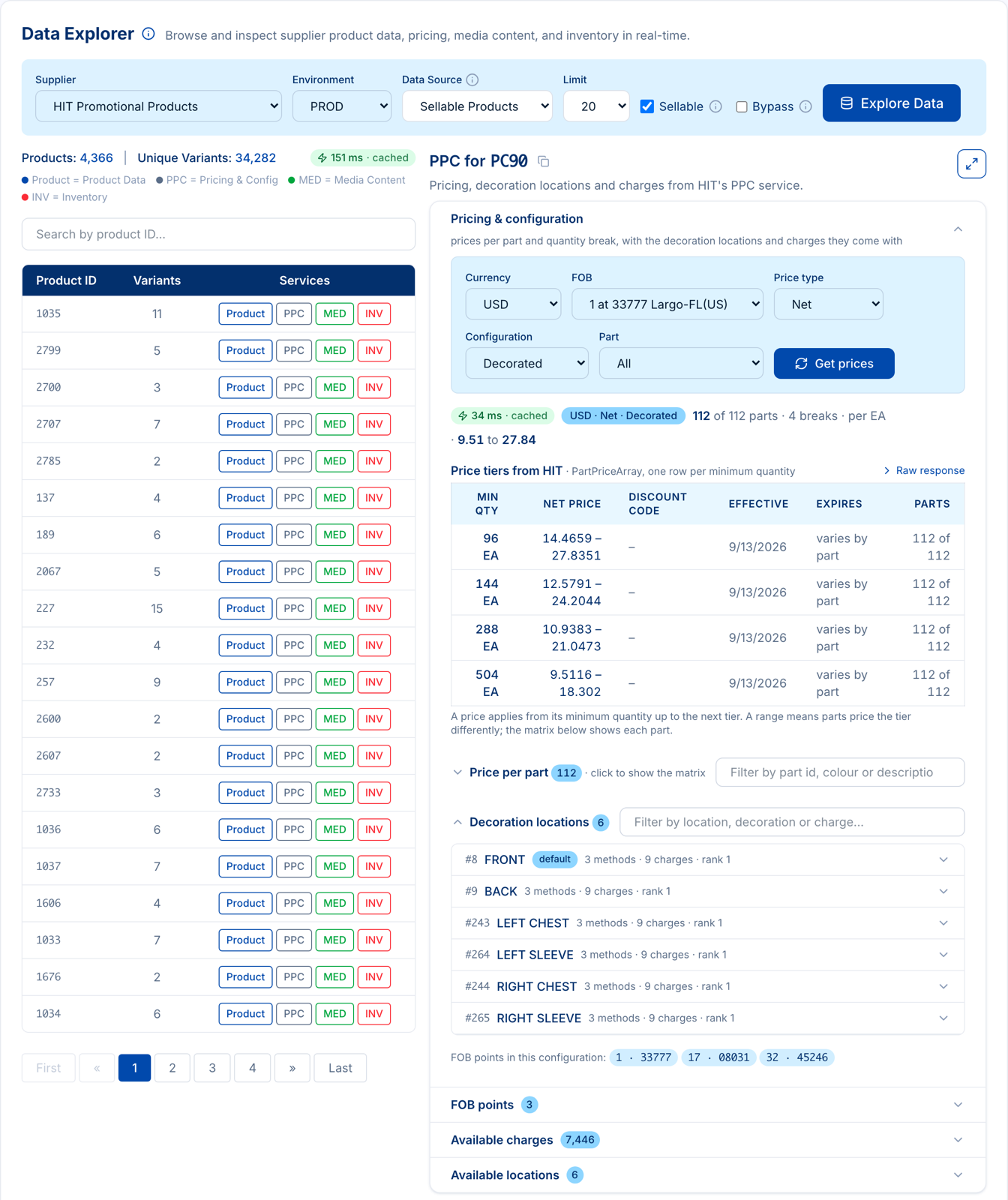
Who uses it, and what they come to check
The Data Explorer started as a developer tool. It turned out that everyone who depends on supplier data ends up here sooner or later, usually with one specific question.
Developers building an integration
"What does this supplier actually return, and how is it shaped?" Every supplier implements the standard a little differently. Reading real answers first saves a rewrite later.
Answered by every tab, plus the raw JSON behind each one.
Suppliers checking their own feed
"Are we publishing what we think we are?" Most suppliers send the data but have no way to see it the way a distributor's integration does. Here they can, product by product.
Answered by opening your own products, including the errors.
PromoSync store owners
"Why do I get no images from supplier X with minimum resolution set to 500?" and "Is my inventory sync actually updating?" Both answers are one click away.
Answered by the Media and Inventory tabs. See the FAQ below.
The fastest way to learn PromoStandards
We say this in almost every first meeting. The documentation tells you what a service is for, the standards pages tell you what every field means, the API reference lets you call it, and the Postman collection gives you a working request to start from. Each one is good on its own. The fastest way to learn is to keep all four open next to the Data Explorer: read a field in the standard, then look at what a real supplier puts in it.
That loop, spec on one side and live data on the other, is how a new developer gets from "what is a FOB point?" to a working integration in days instead of weeks. It is also how you find out which parts of the standard a given supplier actually implements before you write code against them.
Documentation
Guides, concepts and how each PromoStandards service maps to PSRESTful endpoints.
docs.psrestful.com
The standards
Every service and version with its fields explained: Product Data, Media, PPC, Inventory, orders and more.
docs.psrestful.com/standards
API reference
The OpenAPI reference for every endpoint, with request and response schemas you can call from the browser.
api.psrestful.com/docs
Postman collection
Ready-made requests for each service. Add your API key and send.
documenter.getpostman.com
A good first hour: open the Product Data standard, open HIT PC90 in the explorer, and read the two side by side. Then do the same for Pricing & Configuration. Everything below is what you will find on the explorer side.
Product Data
Try it on HIT PC90 →
The getProduct answer
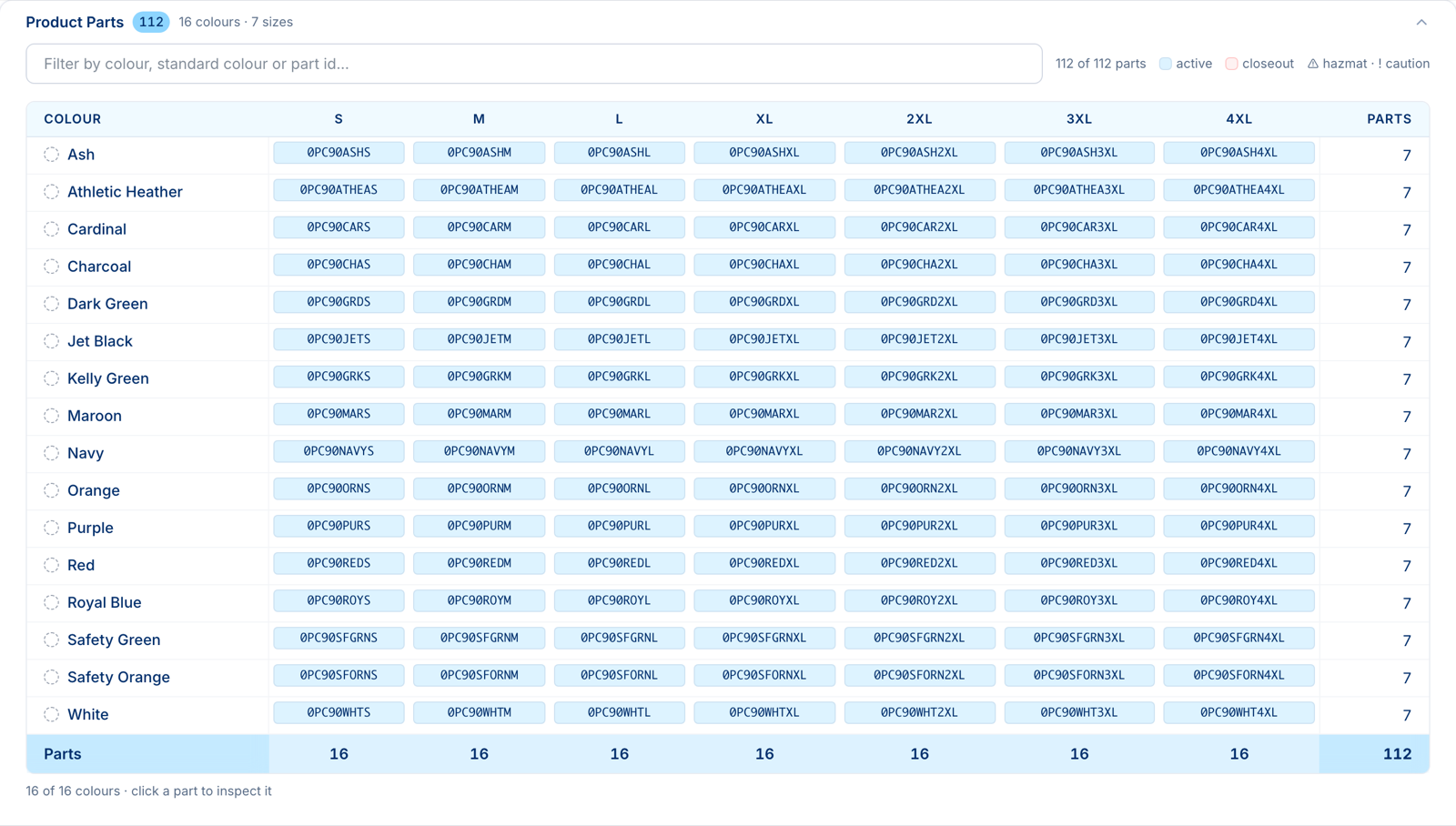
for one product, read as a person would: the header fields, then the parts as a
colour by size matrix. HIT's PC90 fleece is 16 colours across 7 sizes;
all 112 parts fit on one screen, one row per colour, the part id in each cell. Products that are not apparel get
a grouped list instead. Product Data 1.0.0 and 2.0.0 both render.
Search inside the product
The filter matches the colour name, the supplier's standard colour and the part id, so "heather", "ATHEA" and "2XL" all work. The count beside the box says how many parts are still in view.
Click a part to inspect it
Every cell opens an inspector with the whole part as fields: apparel size, country of origin, lead time, closeout and hazmat flags, dates, colour array, shipping packages. A copy button gives you the raw JSON.

What you can check here
- Does this supplier send apparel sizes and colours, or only a flat part list?
- Which parts are closeouts, hazmat, or carry a caution note?
- Does the supplier publish country of origin, lead times, GTINs, MAP prices?
- Is a discontinued product still answering? Type its id: if it is not in the supplier's list you get a direct query.
Media Content
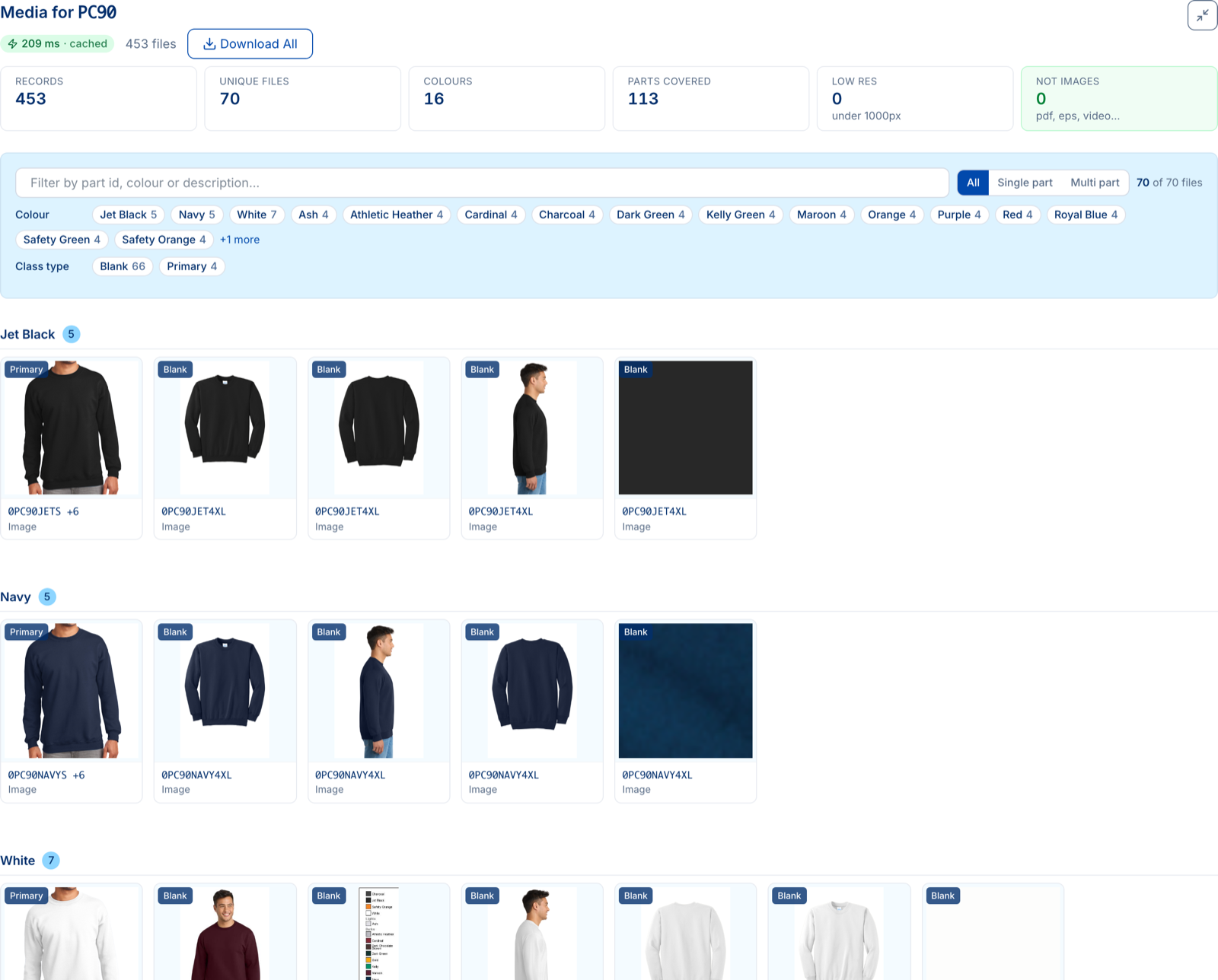
Try it on HIT PC90 →Media used to be a list of URLs. It is a gallery grouped by colour. The 453 media records HIT publishes for PC90 collapse to 70 unique files, each card showing the class type and the parts it covers. Facet chips narrow to one colour or class type, a toggle splits single-part images from multi-part ones, and the tiles at the top count what an integration cares about: files under 1000 pixels, and files that are not images at all.
What you can check here
- No images in PromoSync with minimum resolution 500? The low-resolution tile and each file's width and height in the inspector show why: many suppliers send no dimensions, or small files.
- Does the supplier tag images with a colour and a class type, or leave both empty?
- Which parts have no image at all? Parts covered versus parts in the product tells you.
- Are the "images" actually PDFs, EPS files or videos?
Pricing & Configuration
Try it on HIT PC90 →One workspace, pricing first. Open the tab and it asks the supplier for prices with sensible defaults: the first FOB point, Net prices, the Decorated configuration, all parts. Change anything in the form and it runs again. The first thing you see is the supplier's price tiers exactly as sent, one row per minimum quantity with discount code and dates, and a Raw response toggle beside it.
Price per part
Parts grouped by colour down the side, minimum quantities across the top, the same search box as the product matrix. Click a part for its full price list.
Decoration locations
Each location expands to its methods with imprint area, units included, lead and rush times, and every charge with its price breaks inline. Filter by location, method or charge name.
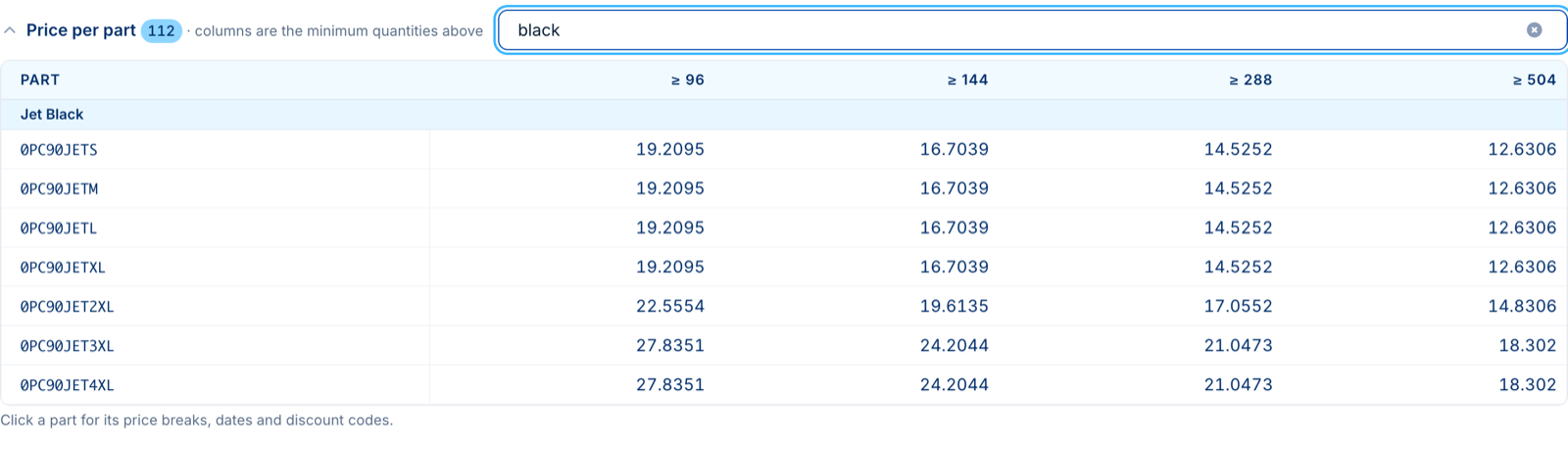
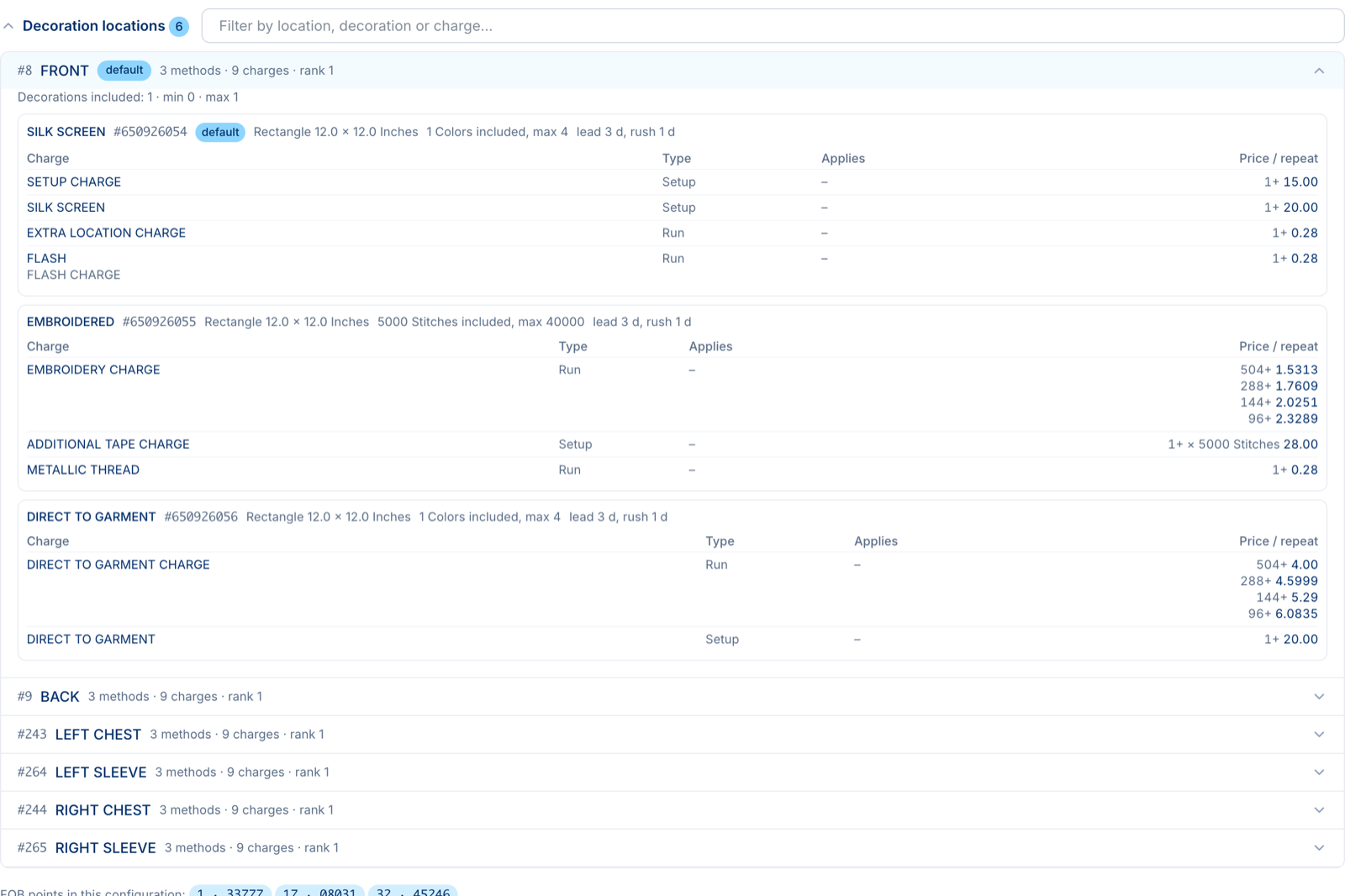
Big products stay readable. Price per part folds itself above 40 parts and Decoration locations above 12, with the count still on the header; one click or typing in the filter opens them. Under the pricing result sit the supplier's full FOB points, available charges and available locations, each searchable. HIT lists 7,446 charges for PC90, so the table shows the first 500 and asks you to narrow.
What you can check here
- Do prices change by FOB point? Switch the FOB and compare the tiers.
- Does Net differ from List, and does the supplier answer Customer pricing with your credentials?
- Which locations offer embroidery, and what is the setup charge and the run charge per stitch count?
- Are the quantity breaks per part or per product? A range in the tier table means parts price differently.
Inventory
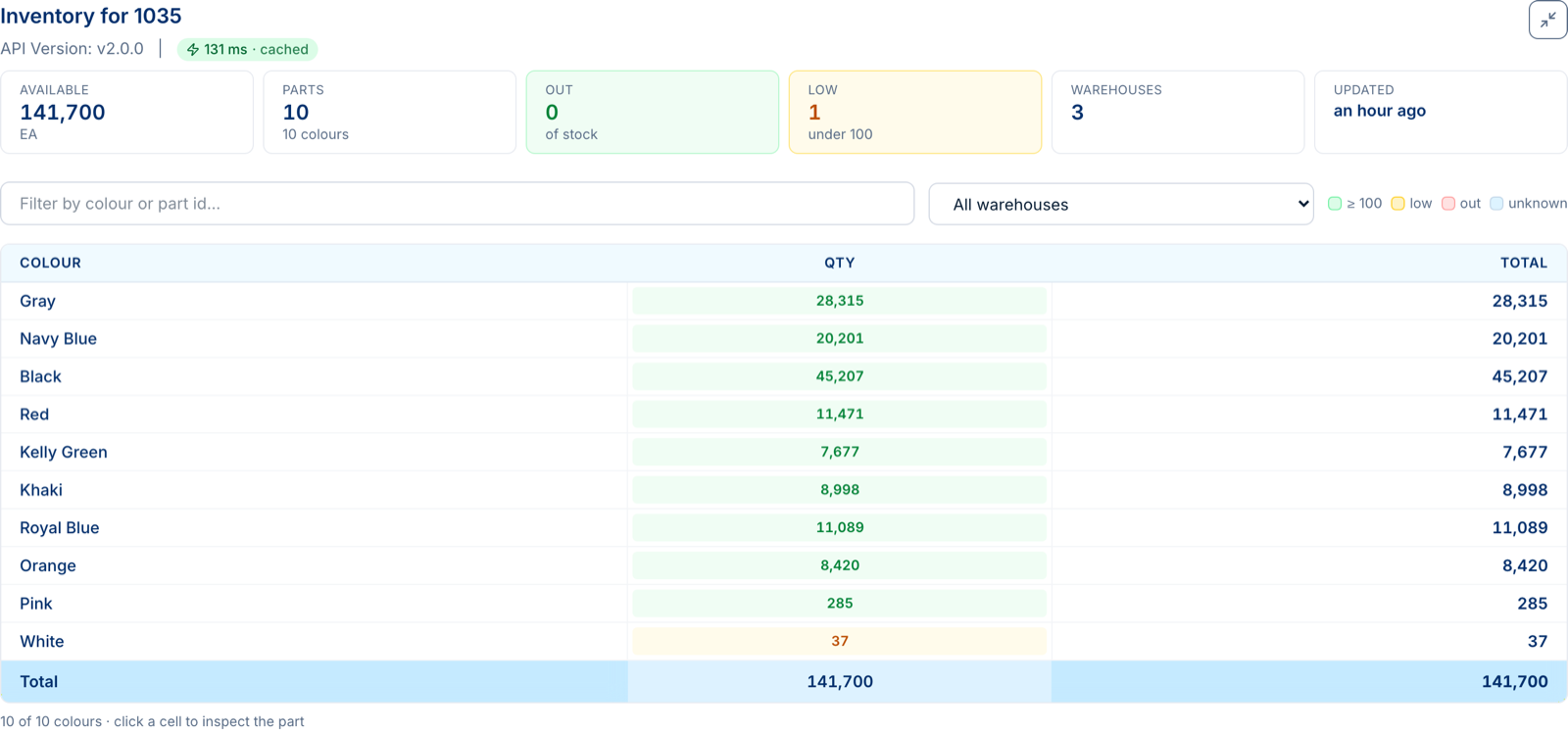
Try it on HIT 1035 →The same grid, for stock. Rows are colours, columns are sizes when the product has them, and each cell is coloured by level: green above 100, amber when running low, red when out, grey when the supplier did not say. The tiles summarise the product: total available, parts and colours, how many are out or low, how many warehouses report, and when the supplier last updated. Pick a warehouse to see just its numbers; click a cell for that part's locations and future availability. Inventory 2.0.0 and 1.2.1 both render. For one product across many suppliers, use Stock Check instead.
What you can check here
- Is my inventory sync working? Compare the Updated tile and the live numbers with your store; tick Bypass to force a live call.
- Which sizes are out, and is it one warehouse or all of them?
- Does the supplier report per warehouse, or one total?
- Does the supplier send future availability, and when?
Reading the badges
Every result carries a small badge and, when needed, a note. They answer the questions that otherwise become support tickets.
169 ms · cached 983 ms · live
How long the supplier took, and whether the answer was live or served from the PSRESTful cache, which can be up to two hours old. Tick Bypass in the toolbar and the same call goes to the supplier again.
Empty is not an error
A supplier answering "No Results Found" (code 160) gets an amber "lists nothing here" state. Real supplier errors are red, with the code and the supplier's own text. Both say whether the answer was cached.
Requests that drift
Some suppliers answer a Net request with a Customer configuration, or price in their own currency. The badge reports what came back, and a note says what you asked for, so it never looks like the form was ignored.
Products the supplier no longer lists
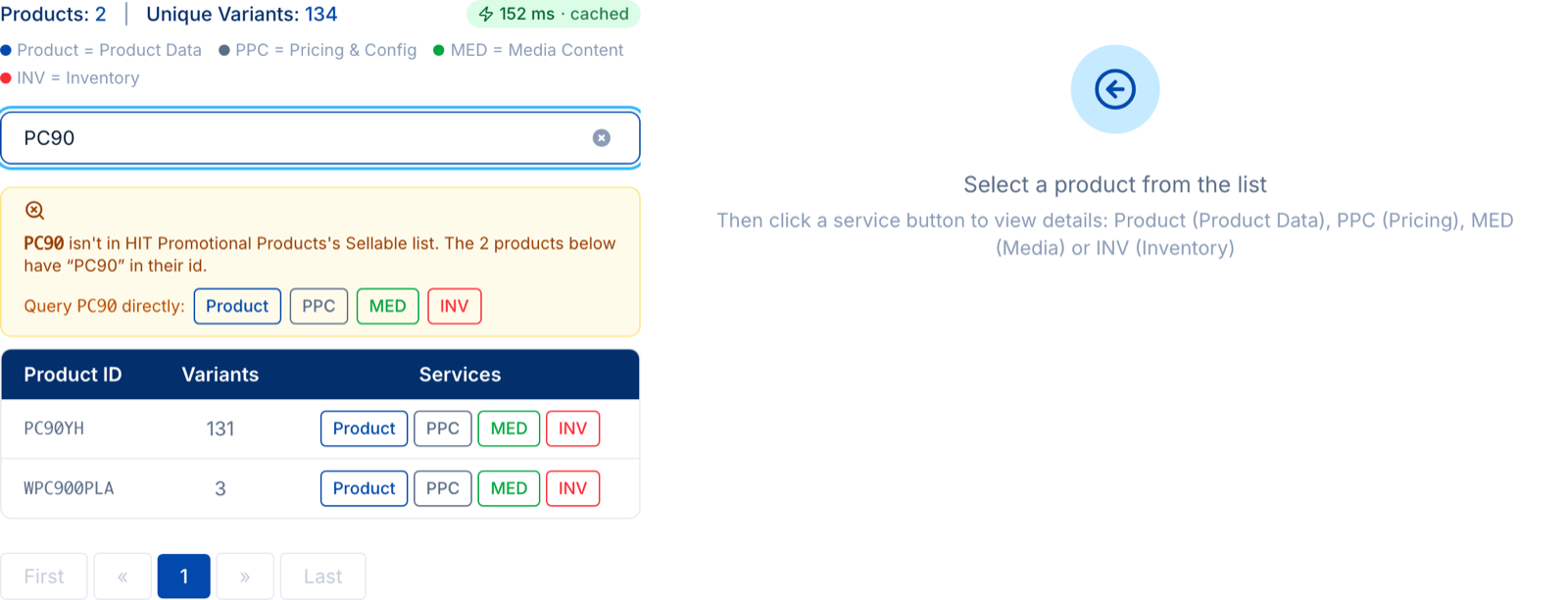
The product list comes from the supplier's published feed for the data source you chose: sellable, recently modified, or closeouts. The raw services do not check that list. Type an id that is not in it and the explorer offers to query the four services for that id directly. It is the quickest way to learn whether a discontinued product still answers, and what it says.
Video walkthrough
A short tour of the explorer in use. The layout in the recording predates the redesign above; the tabs and the workflow are the same.
Plans and access
Every plan, including Free
Product Data, Media Content and Inventory, for every supplier we hold read-only credentials for and every supplier you add your own credentials for.
Standard plan and above
Pricing & Configuration. See pricing for the plans.
Some suppliers, SanMar among them, require your own credentials for Pricing and Inventory regardless of plan. How to configure supplier credentials.
Frequently asked questions
Why am I not getting images from a supplier when I set the minimum resolution to 500 in PromoSync?
Open the supplier's product in the Data Explorer and click MED. The tiles at the top count the files under 1000 pixels and the files that are not images, and the inspector shows each file's width and height. Many suppliers publish images with no dimensions at all or below common thresholds. Once you see what they send you can lower the threshold, pick another class type, or ask the supplier for larger files.
How do I check that inventory updates are working?
Click INV on a product. The Updated tile shows when the supplier last changed the numbers, and the badge on the result says whether the answer was live or served from the PSRESTful cache. Tick Bypass and run it again to force a live call, then compare the quantities with your store.
Can I look at a product the supplier no longer lists?
Yes. Type the product id in the search box. If it is not in the supplier's published list you get four buttons to query Product Data, Pricing, Media and Inventory for that id directly. A response does not mean the product is sellable; it tells you what the endpoints still return.
What does the cached badge mean, and how do I get a live answer?
PSRESTful caches supplier answers for up to two hours so repeated calls are fast. The badge on every result shows the response time and whether it came from the cache or live from the supplier. Tick Bypass in the toolbar to ask the supplier again.
I am a supplier. Can I use the Data Explorer to check what we publish?
Yes, and it is one of the most common uses. Sign up for a free account, pick your company as the supplier, and open any of your products. You see your Product Data, Media, Pricing and Inventory exactly as a distributor's integration receives them, including errors and empty responses.
Do I need a paid plan?
Product Data, Media Content and Inventory are available on every plan, including the free one. Pricing & Configuration requires the Standard plan or above.
Why does SanMar show a credentials notice instead of prices or stock?
SanMar only returns Pricing and Inventory data to distributors who have added their own SanMar credentials to their PSRESTful account. The explorer shows that message with links to add or request credentials rather than an empty result.
Open a supplier and see for yourself
Pick a supplier, click Product, MED, PPC or INV beside any product. The free plan includes everything but pricing.