AI Mockup Generator
BetaShow a customer their logo on the product before anyone orders a sample.
Pick a product from your suppliers, upload your logo, and choose where it goes and how it's decorated. An AI image model then draws a mockup of the logo on the supplier's blank product photo, in the style of that decoration.
From a mockup you like, you can generate four lifestyle images that place the decorated product in a setting such as a modern office desk, a coffee shop, or a trade show booth.
The tool is in beta, and the images are drawn by AI, so look each one over before it goes to a customer.
What it does
No design program needed
You choose a product, a location, and a decoration method, and upload your logo. You don't have to find the product photo or place the logo by hand.
Drawn in the decoration's style
Each method comes with its own description for the AI: raised thread texture for embroidery, flat opaque ink for screen print, an etched look with no color for laser engraving.
Placement you control
Open Artwork Placement to fit, fill, or stretch the logo, move it to one of nine positions, and set its size from 10% to 100% of the area. Or repeat it as a pattern.
Blank photo picked for you
The tool picks the best-ranked blank photo for the color you choose. When the supplier has more than one view of that color, click another thumbnail to use it instead.
Locations from the supplier
The Location and Decoration Method lists come from the supplier's decoration data, with the imprint size when the supplier sends one. Missing or wrong? Click Type custom and enter your own.
Lifestyle photos
From a finished mockup, generate 4 lifestyle images in one of ten settings, or type your own. Each image has its own download link.
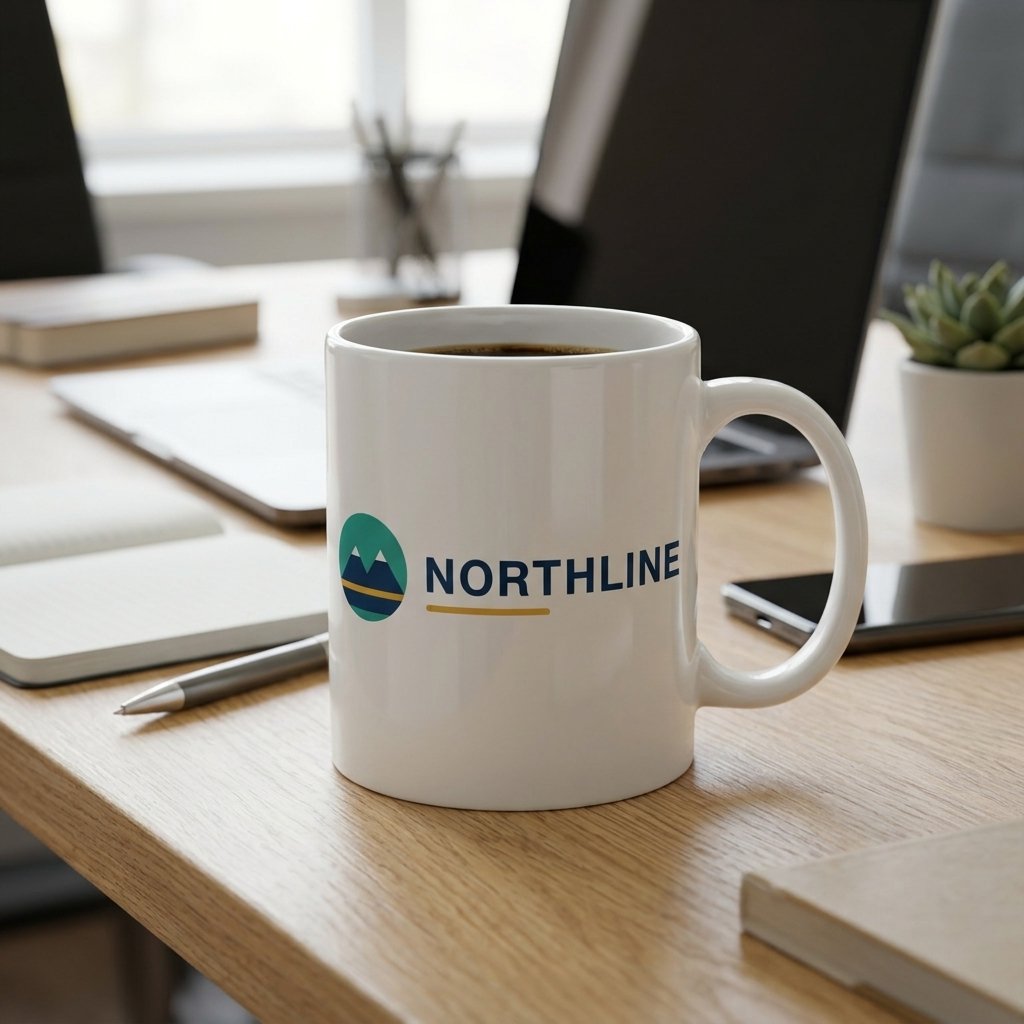
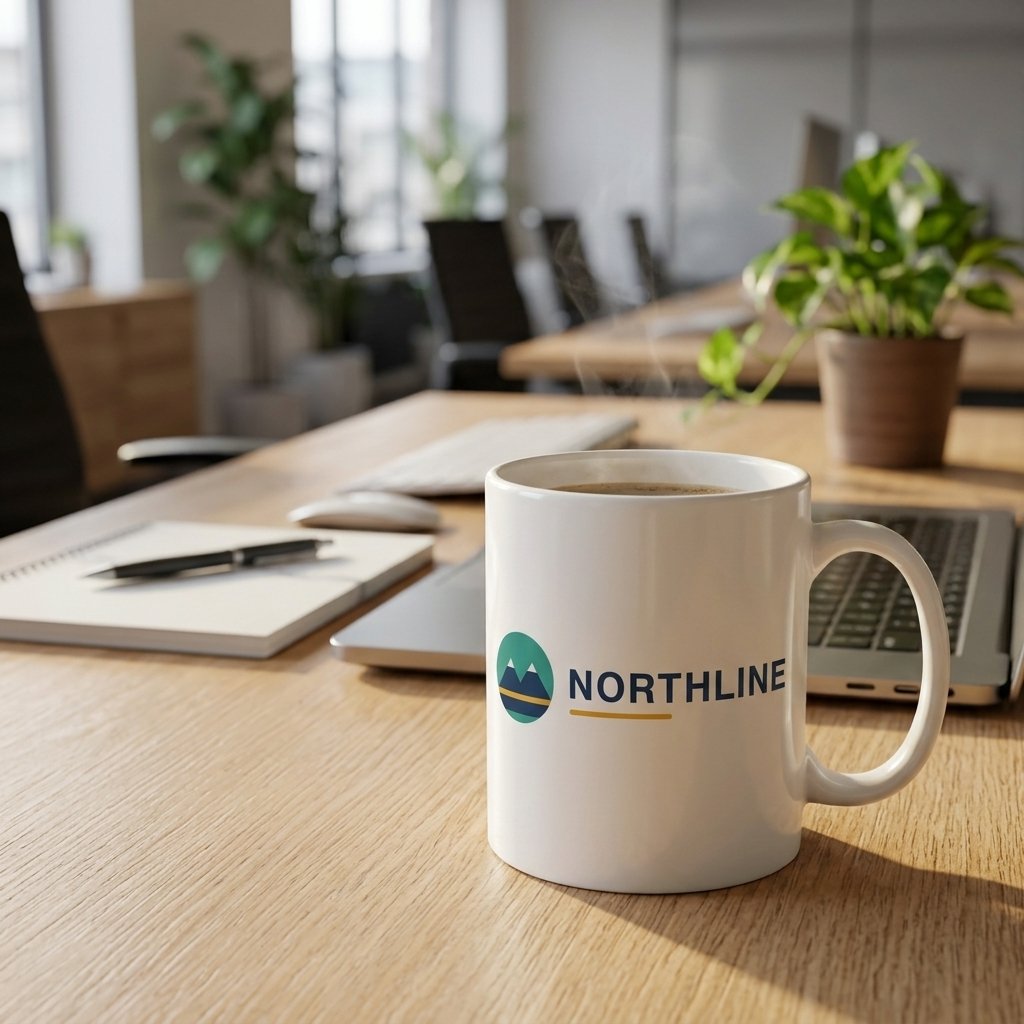
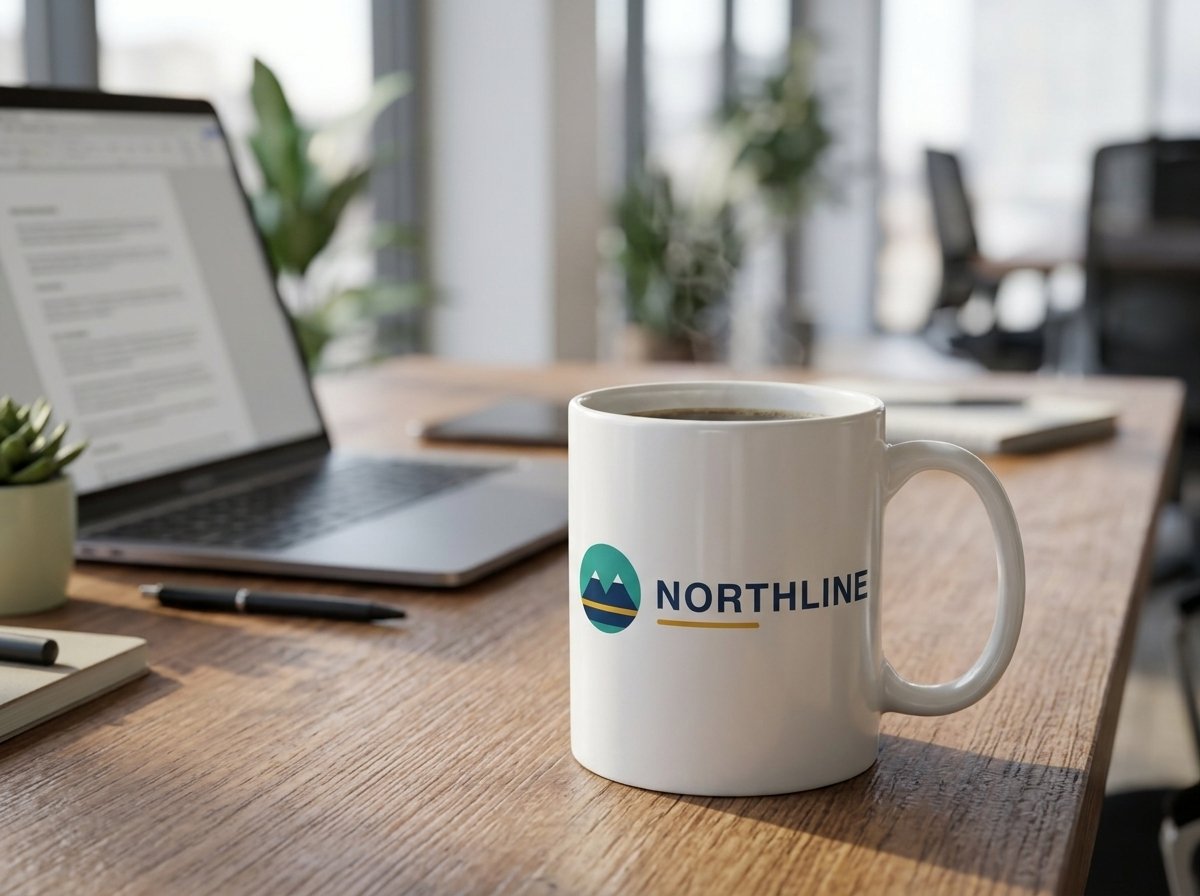
Three of the four lifestyle images made from that mockup with the Modern office desk setting. Made in the real tool with a made-up logo.
How it works
-
1
Find the product
In the dashboard, open Media > AI Mockup and pick a supplier. Narrow the list by Category, Status (Active & Closeout, Active, or Closeout), and Mockup-ready, or search by name or SKU. Only products with supplier decoration data show up.
Ready means every color has a high-resolution blank photo, and Partial means at least one does. Ready products are listed first. Click Generate Mockup on a card to configure it.
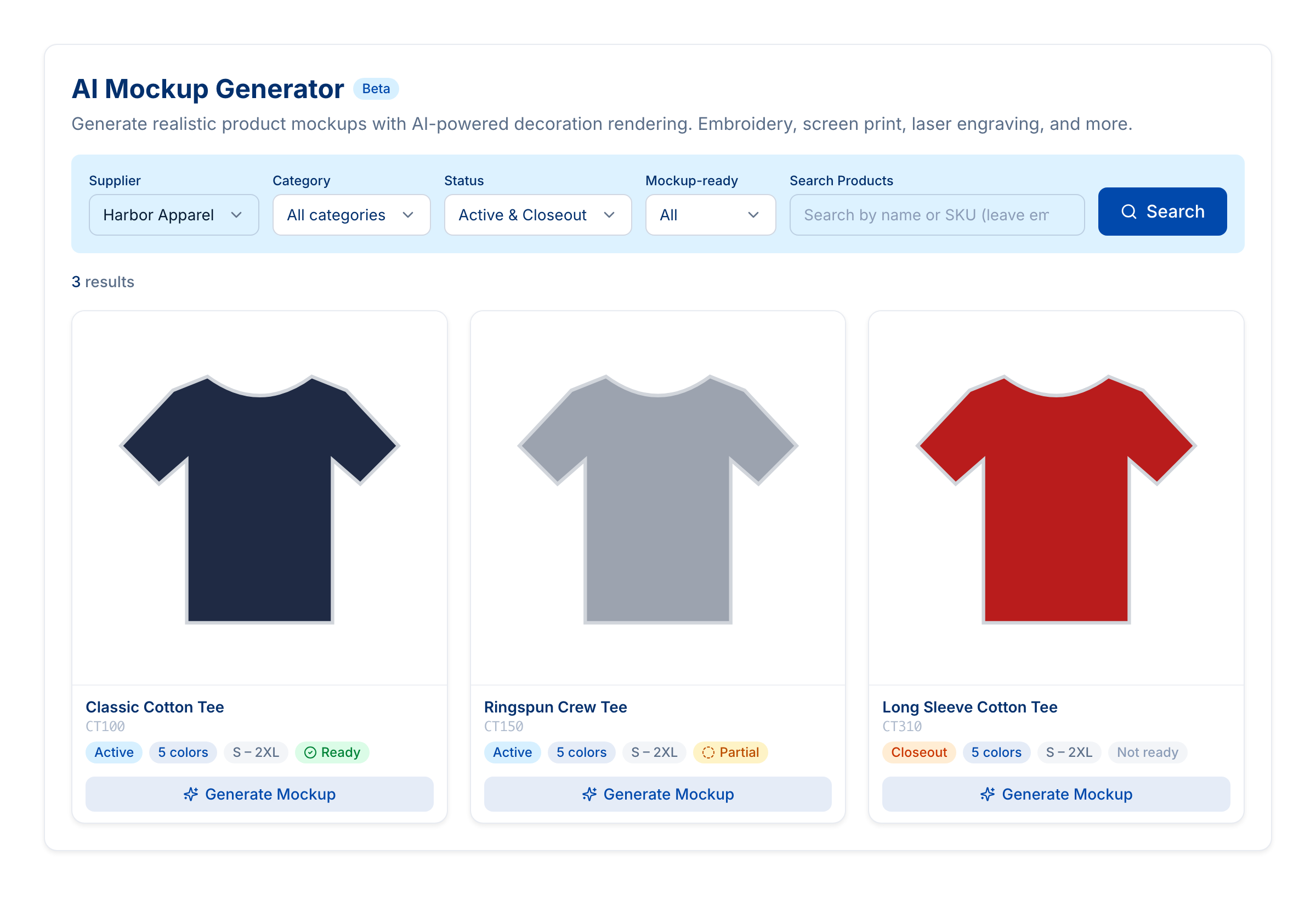
Three made-up tees, one for each Mockup-ready state. Example with made-up data. Your screen shows your own account. -
2
Choose the color, location, and decoration
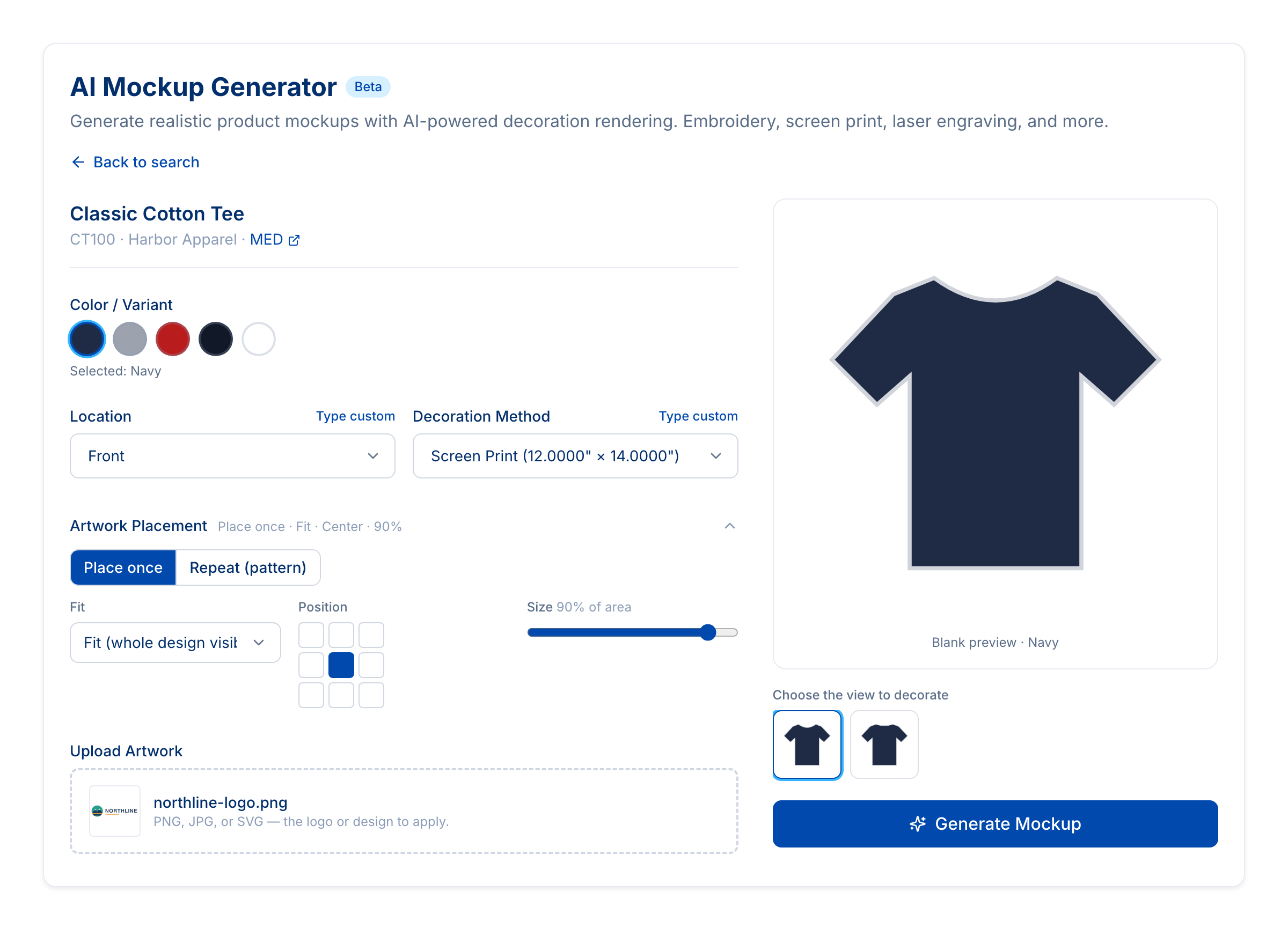
Click a color swatch, then pick the Location and the Decoration Method. On the right, check the blank preview and, if there's a row of thumbnails, choose the view to decorate.
-
3
Adjust the placement, if you need to
Artwork Placement starts closed, set to Place once, Fit, Center, and 90% of the area. Open it to change the Fit (Fit, Fill, Actual size, or Stretch), the Position, and the Size. To cover the area with a pattern, switch to Repeat (pattern) and pick a repeat style (Straight grid, Half-drop, Brick, or Mirror) and a density.
-
4
Upload your artwork and generate
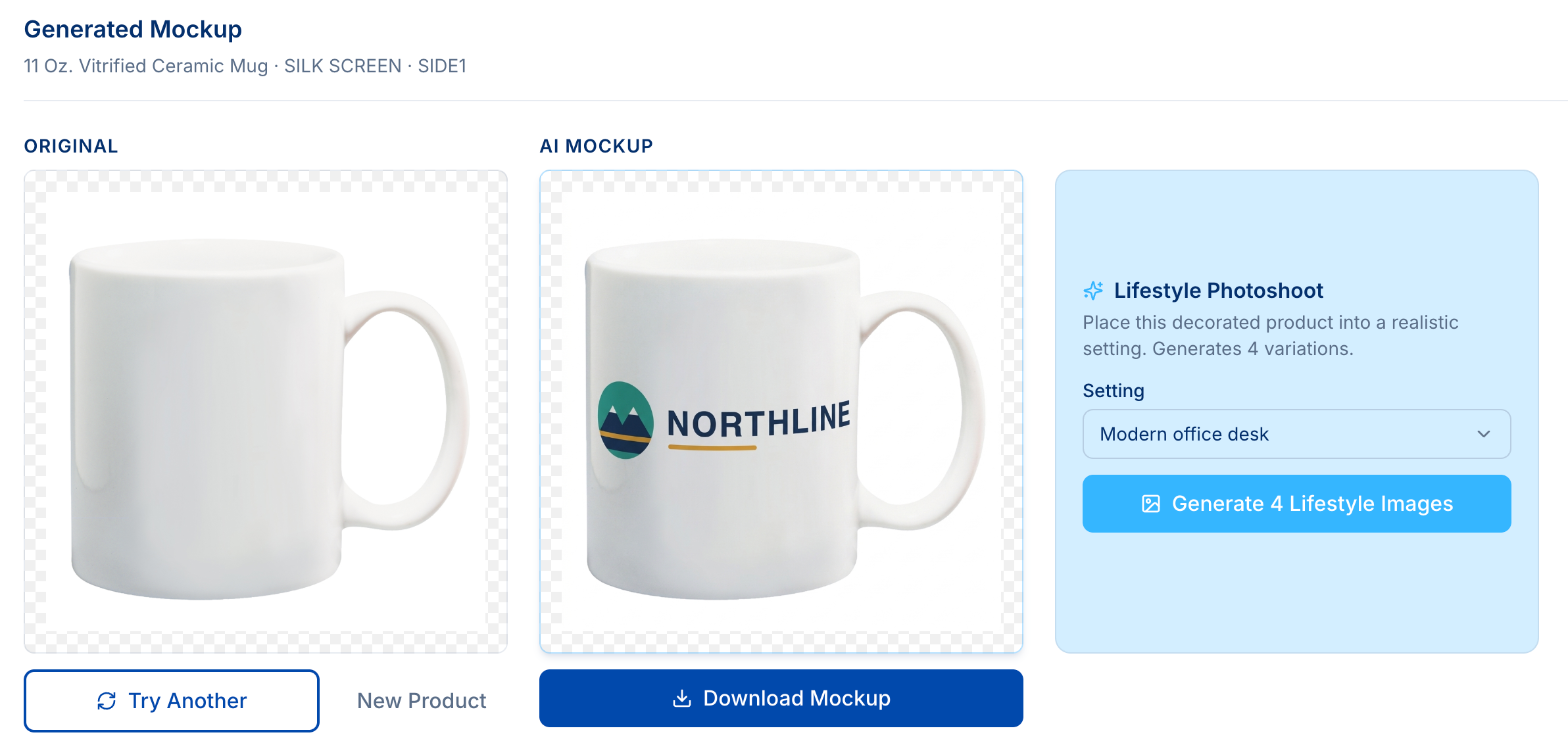
Drag your logo into Upload Artwork or click to browse. It takes PNG, JPG, or SVG; an SVG is turned into a PNG before it's used. Click Generate Mockup. The tool says it may take 10 to 20 seconds. The result shows the blank next to the AI mockup, with Download Mockup to save it as a PNG and Try Another to go back and change the settings.
-
5
Make lifestyle images, if you want them
Next to the mockup, pick a Setting, or choose Other… and type one; a setting you save stays in the list in that browser. Click Generate 4 Lifestyle Images, then Download #1 to #4 for the ones you want.
Decoration methods it knows
The tool recognizes these methods by their name, from the supplier's list or typed in, and tells the AI how each one looks. Any other method is drawn as a general decoration.
The AI Mockup Generator is on the Enterprise plan, which we price for each company. In the dashboard, it's for users with the Admin, Developer, or Product Specialist role.
Ask about Enterprise